PROMOTIONS · MERCHANT GUIDE
Shopify discount setup guide
Create the real automatic discount that matches your MeAero campaign. The screenshots show an unsaved example in the actual Shopify admin; they do not indicate an existing discount.
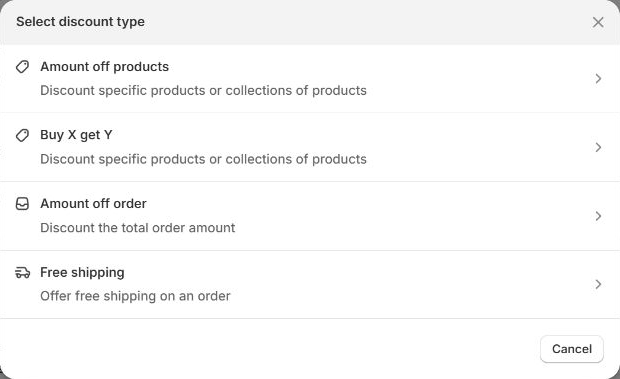
1Create an automatic product discount
- In your current store’s Shopify admin, open Discounts → Create discount. Choose Amount off products.
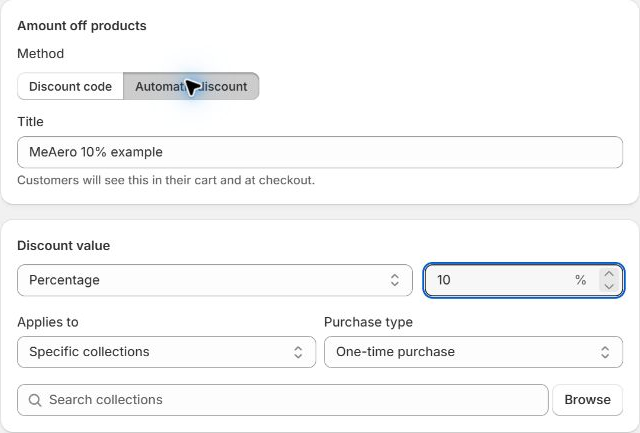
- Choose Automatic discount and enter a clear title. Customers will not need to enter a code.
2Match the percentage and target
- Choose Percentage as the discount value type.
- Enter exactly the same percentage as MeAero, for example 10.
- Under Applies to, choose Specific products or Specific collections.
- Use Browse to select the exact product or collection configured in MeAero. If both are selected in MeAero, use the product.
- For ordinary products, choose One-time purchase as the purchase type.
3Keep eligibility simple
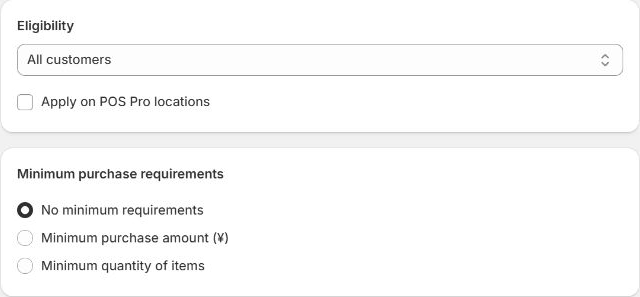
- Set eligibility to All customers.
- Choose No minimum requirements.
- Leave Apply on POS Pro locations off if you do not use POS for this promotion.
- For the current simple MeAero mapping, do not enable combinations with other discounts.
Minimum spend, minimum quantity, selected customers, Buy X Get Y and complex combinations are outside this
simple mapping. Do not display those conditional discounts as an unconditional product price.
4Match the schedule and timezone
- Match the start and end dates to MeAero. Enable Set end date. Start at 00:00 on the first day and end at 00:00 on the day after the last activity day.
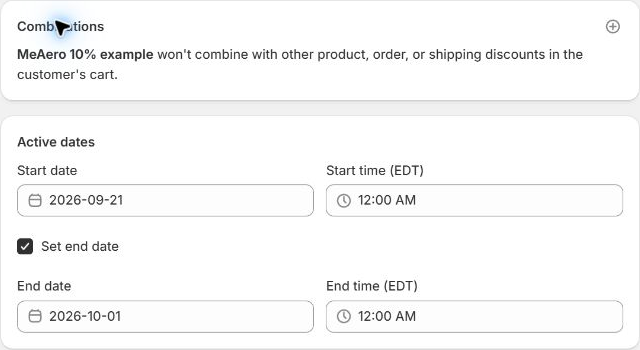
In the English interface, 12:00 AM means midnight (00:00), not noon. The timezone label in the screenshot belongs to the example store. Use your own store’s timezone and match it in MeAero.
See the side-by-side date example →5Save and return to MeAero
- Review the target, percentage, eligibility, requirements, combinations and dates. Click Save in Shopify. Check that the discount saved successfully and has the expected status.
- Return to your original MeAero editor tab. Turn on Matching Shopify discount is configured, then save the theme settings.
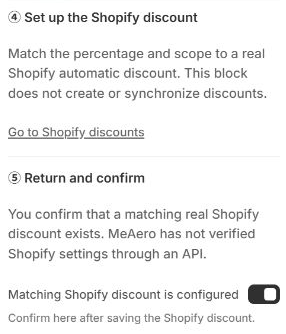
Check an eligible cart and checkout to verify the actual discount. The confirmation checkbox is a merchant declaration, not automatic verification of Shopify’s configuration.
Return to the promotion guide →